Your smart TV is placed on the living room furniture, plugged into the power supply, but the home screen remains stuck on a handful of classic channels. To access streaming apps, updates, and web browsing, it needs a network connection. Connecting a smart TV to the Internet takes just a few minutes, provided you choose the right method according to your home setup.
Diagnosis Before Connection: What Your Smart TV Expects from Your Network
Before touching any cables or menus, check two points. The first is the distance between your Internet box and your television. If both devices are in the same room, an Ethernet cable solves everything without any special settings.
Recommended read : How to Find the Ideal Home Online: Tips and Tricks for Success
The second point concerns your Wi-Fi password. For a few years now, WPS is often disabled by default on recent routers for security reasons. This means that automatic connection by simply pressing a button on the box is not always available. So prepare your Wi-Fi password before you start, or check the label stuck under your box.
If you’re looking to understand how to connect a smart TV to the Internet from scratch, the logic remains the same regardless of the manufacturer: access the network settings of the television, choose between wired or wireless connection, and then validate the access.
Further reading : The best methods to watch a movie streaming on your smart TV
Wi-Fi Connection on Smart TV: The Concrete Steps
Take the remote control of your connected television. Open the settings (often represented by a gear icon), then look for the “Network” or “Connection” section. The screen displays the list of detected Wi-Fi networks nearby.
Select the name of your home network. The television will then ask you for the password. This is the most tedious part: entering a complex password with a remote control is slow, especially when it mixes uppercase letters, numbers, and special characters.
Do you have a recent LG TV running webOS or a Samsung model compatible with SmartThings? Good news. These brands now offer a QR code to scan with your smartphone. The phone directly transmits the Wi-Fi password to the television, without manual entry. Look for the “Quick Setup” or “Wi-Fi QR Code” option in the network settings.
Once the password is validated, the TV tests the connection. If a small globe or a green check mark appears, it’s done. Your smart TV is connected to the Internet.
Ethernet Cable or Wi-Fi: Which Choice for a Stable Connection
Wi-Fi is suitable for most uses, but it has its limits. Have you ever noticed that streaming freezes in the middle of a movie, right at the most tense moment? This stuttering often comes from a weakened Wi-Fi signal due to walls, floors, or neighboring devices saturating the bandwidth.
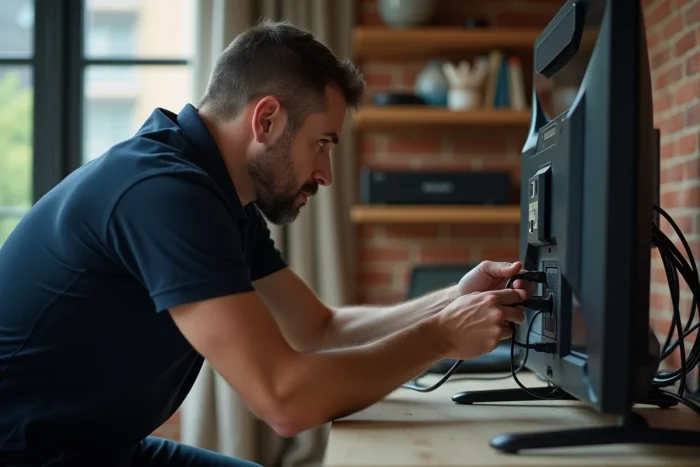
An Ethernet cable connected between the box and the television eliminates these interruptions. The connection is direct, with no loss of speed. Locate the Ethernet port at the back of your TV (it looks like a wider phone jack, often next to the HDMI ports). Plug a network cable between this port and one of the free ports on your box.
The television automatically detects the wired connection, without a password or configuration. This is the most reliable method if your box and screen are close.
When the Box is Too Far for a Cable
Running an Ethernet cable throughout the house is not always realistic. Two solutions are worth considering:
- Powerline adapters use your home’s electrical circuit to carry the network signal from one wall socket to another. You plug one adapter near the box, another near the TV, and the network travels through the existing electrical wires.
- Wi-Fi extenders or mesh systems extend wireless coverage. Several Internet service providers offer these extenders as options in their recent fiber packages. Orange, for example, allows you to pair an extender with the Livebox via WPS in a few seconds.
- A TV decoder from your operator, connected to the box via the home network, can also serve as a bridge if your smart TV is connected via HDMI to it, although in this case, the TV’s native apps do not directly benefit from the decoder’s connection.
Quick Troubleshooting When the Smart TV Won’t Connect
The TV displays “Connection impossible” or “Network not found”? Before questioning everything, test these checks in order.
- Restart the Internet box by unplugging it for about thirty seconds, then turn it back on. This is the most common solution, and it resolves most blockages.
- Check that the entered password is correct, paying attention to uppercase letters and special characters.
- Temporarily move the TV closer to the box (if it is on a movable piece of furniture) to confirm that the problem is due to distance and not the television itself.
- Update the smart TV’s software. An outdated firmware can prevent connection to certain recent Wi-Fi security protocols.
If none of these steps work, plug in an Ethernet cable to check that the TV’s network module is functional. A successful wired connection but a failed Wi-Fi connection points to a problem with the internal Wi-Fi card, which is rarer but possible on older models.
After Connection: First Settings Not to Forget
Once online, your smart TV will likely prompt for a software update. Accept it, even if it takes a few minutes. These updates fix security vulnerabilities and improve compatibility with streaming applications.
Also, remember to check the privacy settings in the television’s settings. Some models enable data collection or automatic content recognition by default. These options can usually be disabled in the “Privacy” or “Terms of Use” menu.
Connecting a television to the Internet transforms a simple screen into a complete multimedia platform. The most suitable method depends solely on the distance between your box and your living room, and the stability of the Wi-Fi signal at your home. With a wired connection, it’s immediate and requires no configuration. With Wi-Fi, the QR code on recent models has made password entry almost trivial.